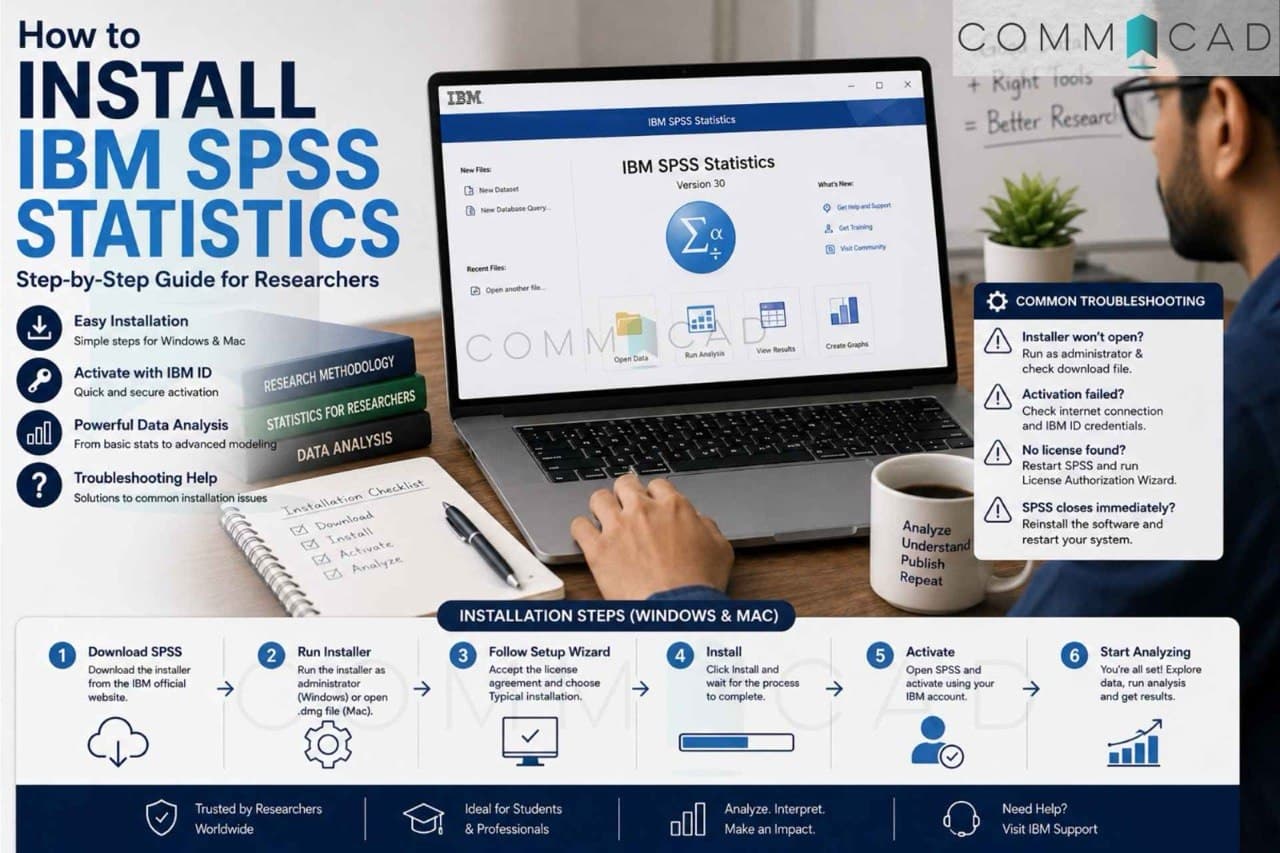
How to Install SmartPLS for SEM: Step-by-Step Guide for Researchers
Structural Equation Modeling (SEM) has become an essential analytical technique for researchers across disciplines such as management, social sciences, psychology, and marketing.
Among the available tools, SmartPLS is widely used due to its user-friendly interface and strong capabilities for Partial Least Squares SEM (PLS-SEM).
Before you begin your SEM analysis, the first step is to correctly install SmartPLS on your system.
This guide provides a complete step-by-step installation process, along with common troubleshooting tips to help you get started smoothly.
What is SmartPLS?
SmartPLS is a statistical software used for:
Structural Equation Modeling (SEM)
Path analysis
Measurement model evaluation
Hypothesis testing using PLS approach
It is especially useful for:
Small to medium sample sizes
Complex models
Exploratory research
System Requirements
Before installing SmartPLS, ensure your system meets the following:
Minimum Requirements
Operating System: Windows 10/11 or macOS
RAM: 4 GB (8 GB recommended)
Storage: At least 500 MB free space
Java: Not required (bundled with SmartPLS)
Step 1: Download SmartPLS
Visit the official SmartPLS website
Navigate to the Free Trial section
Direct Link: https://smartpls.com/free-trial/
Click on "downloading and installing"
Choose your operating system:
Windows (.exe)
macOS (.dmg)
Download the latest version
Step 2: Installation on Windows
Step-by-Step Process
Locate the downloaded .exe file
Double-click to launch the installer
Click Next on the setup wizard
Accept the license agreement
Choose installation directory (default recommended)
Click Install
Wait for installation to complete
Click Finish
Launching SmartPLS
Open from Desktop shortcut or Start Menu
First launch may take a few seconds
Step 3: Installation on macOS
Step-by-Step Process
Open the downloaded .dmg file
Drag the SmartPLS icon into the Applications folder
Open Applications
Click on SmartPLS
Security Permission (Important)
If you see:
“App cannot be opened because it is from an unidentified developer”
Do this:
Go to System Settings → Privacy & Security
Scroll to Security section
Click Open Anyway
Confirm launch
Step 4: Creating a SmartPLS Account
After installation:
Open SmartPLS
Click on Sign Up
Register using your email
Verify your email address
Step 5: Activating Free Student License
SmartPLS offers a free student version with limited features.
Steps:
Log in to your account
Go to License Section
Apply for Student License
Upload:
Student ID / Institutional proof
Wait for approval (usually quick)
Step 6: Verifying Installation
To confirm everything is working:
Open SmartPLS
Create a New Project
Import a sample dataset
Try drawing a simple model
If everything runs smoothly, your installation is successful.
Common Installation Issues & Fixes
1. SmartPLS Not Opening (Windows)
Possible Fixes:
Run as Administrator
Disable antivirus temporarily
Reinstall software
2. macOS Blocking Application
Fix:
Use “Open Anyway” in Security Settings
3. Slow Performance
Fix:
Close background applications
Upgrade RAM if possible
4. Login or License Issues
Fix:
Recheck email verification
Ensure correct credentials
Reapply for student license if needed
Final Thoughts
Installing SmartPLS is a simple but important first step toward conducting SEM analysis.
A correct setup ensures that you can focus on what truly matters, building meaningful models and generating impactful research insights.
Once installed, the next step is not just using the software, but understanding how to apply SEM correctly in your research context.
Bonus Tip
Installation is easy.
Interpretation is where most researchers struggle.
Make sure you:
Understand path coefficients
Evaluate reliability and validity
Interpret model fit properly
That’s where real research quality is built.
-Commacad Experts