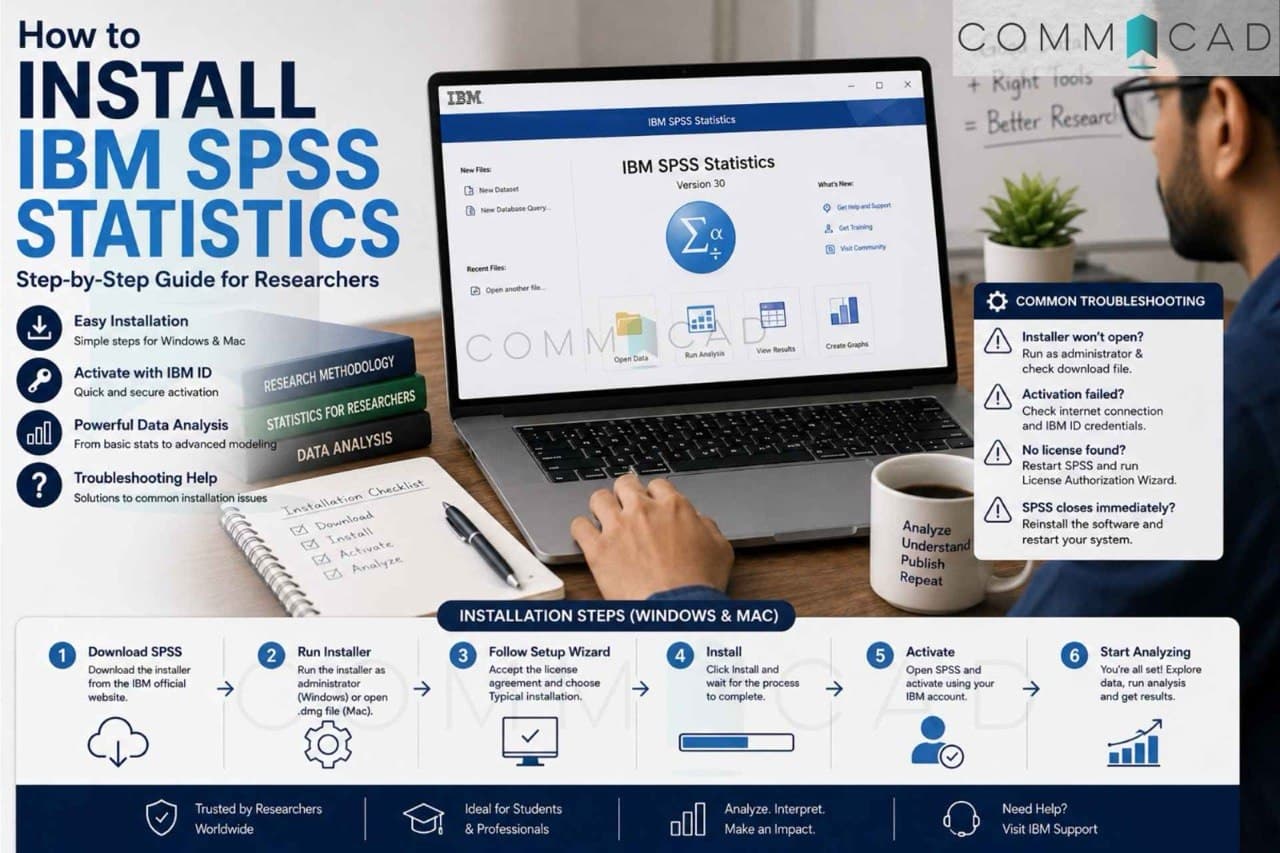
How to Install IBM SPSS Statistics: A Step-by-Step Guide
For many research scholars, data analysis begins with choosing the right software. Among the most widely used tools in academic research, IBM SPSS Statistics continues to be a preferred choice for managing, analyzing, and interpreting quantitative data.
From descriptive statistics to advanced analytical techniques, SPSS is used across disciplines including healthcare, social sciences, psychology, education, management, and public health research.
However, one challenge many beginners face is the installation process itself. This guide walks you through how to install IBM SPSS Statistics, activate it properly, and resolve common issues that users encounter.
What is IBM SPSS Statistics?
IBM SPSS Statistics is a software package designed for:
Data entry and management
Statistical analysis
Data visualization
Hypothesis testing
Regression and predictive modelling
Research reporting
Its user-friendly interface makes it particularly valuable for students and researchers who may not have extensive programming experience.
Before You Begin Installation
Before downloading SPSS, ensure the following:
✔ Stable internet connection
✔ Administrator access on your system
✔ Sufficient storage space available
✔ IBM account (required for trial activation)
✔ Close unnecessary applications before starting installation
Step 1: Download IBM SPSS Statistics
Search for the IBM SPSS Statistics Trial page or access the official IBM website.
Click Try SPSS Statistics.
(Direct link:
https://www.ibm.com/account/reg/us-en/signup?formid=urx-19774)
Sign in with an existing IBM account or create a new account.Select your operating system:
Windows
macOS
Download the installer file.
Downloaded file types:
Windows →
.exeMac →
.dmg
Step 2: Install IBM SPSS on Windows
1. Open the installer
Locate the downloaded .exe file inside your Downloads folder.
Example:
SPSS_Statistics_Installer.exe
2. Run as administrator
Right-click the installer → Run as administrator
3. Start installation wizard
The setup window will appear.
Click:
Next
4. Accept the license agreement
Select:
✔ I accept the terms
Click:
Next
5. Choose installation type
Select:
Typical Installation
This is recommended for most users.
6. Choose installation folder
Keep the default location unless you need a different storage path.
Click:
Install
7. Wait for installation
Installation may take several minutes.
8. Activate SPSS
After installation completes:
Open SPSS
The License Authorization Wizard opens automatically
Select:
Authorized User License
Sign in with your IBM account and complete activation.
Step 3: Install IBM SPSS on Mac
1. Locate downloaded file
Open the downloaded .dmg file.
2. Launch installer
Double-click the .pkg file.
3. Continue installation
Click:
Continue → Agree
4. Select installation destination
Choose:
Macintosh HD
5. Authenticate installation
Enter your Mac administrator password when prompted.
6. Complete installation
Wait until installation finishes.
7. Activate SPSS
Open:
Applications → IBM SPSS Statistics
The License Authorization Wizard will appear.
Sign in with your IBM account to activate.
How to Verify Successful Installation
Open SPSS and check:
Help → About
Verify:
Version information appears
License status is active
Software opens without errors
You can also run a quick test:
Open SPSS
Go to:
Analyze → Descriptive Statistics → Frequencies
Import a small dataset and confirm outputs are generated.
Common Installation Problems and Troubleshooting
Even with a straightforward installation process, some issues may occur.
Problem 1: Installer does not open
Possible causes:
Corrupted download
Missing permissions
Antivirus restrictions
Solution:
✔ Re-download installer
✔ Run as administrator
✔ Temporarily disable antivirus during installation
✔ Restart system and retry
Problem 2: License Authorization Wizard fails
Possible causes:
Incorrect IBM login details
Internet connection issues
Firewall restrictions
Solution:
✔ Verify IBM account credentials
✔ Check internet connection
✔ Disable VPN temporarily
✔ Restart SPSS and retry activation
Problem 3: SPSS opens and closes immediately
Possible causes:
Incomplete installation
Missing dependencies
Software conflict
Solution:
✔ Restart system
✔ Reinstall SPSS completely
✔ Remove old SPSS versions before reinstalling
Problem 4: Mac blocks the installer
Possible cause:
macOS security settings
Solution:
Go to:
System Settings → Privacy & Security
Click:
Allow/Open Anyway
Then relaunch installer.
Problem 5: "No License Found" error
Solution:
Open:
License Authorization Wizard
Re-enter activation details and sign in again.
If issue persists:
Remove old license files
Reinstall SPSS
Problem 6: SPSS becomes slow after installation
Possible causes:
Low RAM
Background applications
Large datasets
Solution:
✔ Close unnecessary applications
✔ Restart system
✔ Increase available memory if possible
Additional Tips for Research Scholars
Install SPSS at least one day before workshops or project deadlines.
Keep installation files for future use.
Save raw datasets separately before analysis.
Regularly update SPSS if newer versions become available.
Final Thoughts
IBM SPSS Statistics remains one of the most accessible and powerful tools for quantitative research. While installation is usually straightforward, understanding common issues beforehand can save valuable time and reduce frustration.
Once installed successfully, SPSS becomes more than software—it becomes a practical tool for transforming raw data into meaningful research insights.
-Steps as on 15 May 2026-
-Commacad Experts